
Appearance
Engine Creation and Testing using the unitypredict-engines Python SDK
Installation
- You can use pip to install the
unitypredict-engineslibrary.
bash
pip install unitypredict-enginesNOTE: If you encounter the following warning during the installation of unitypredict-engines:
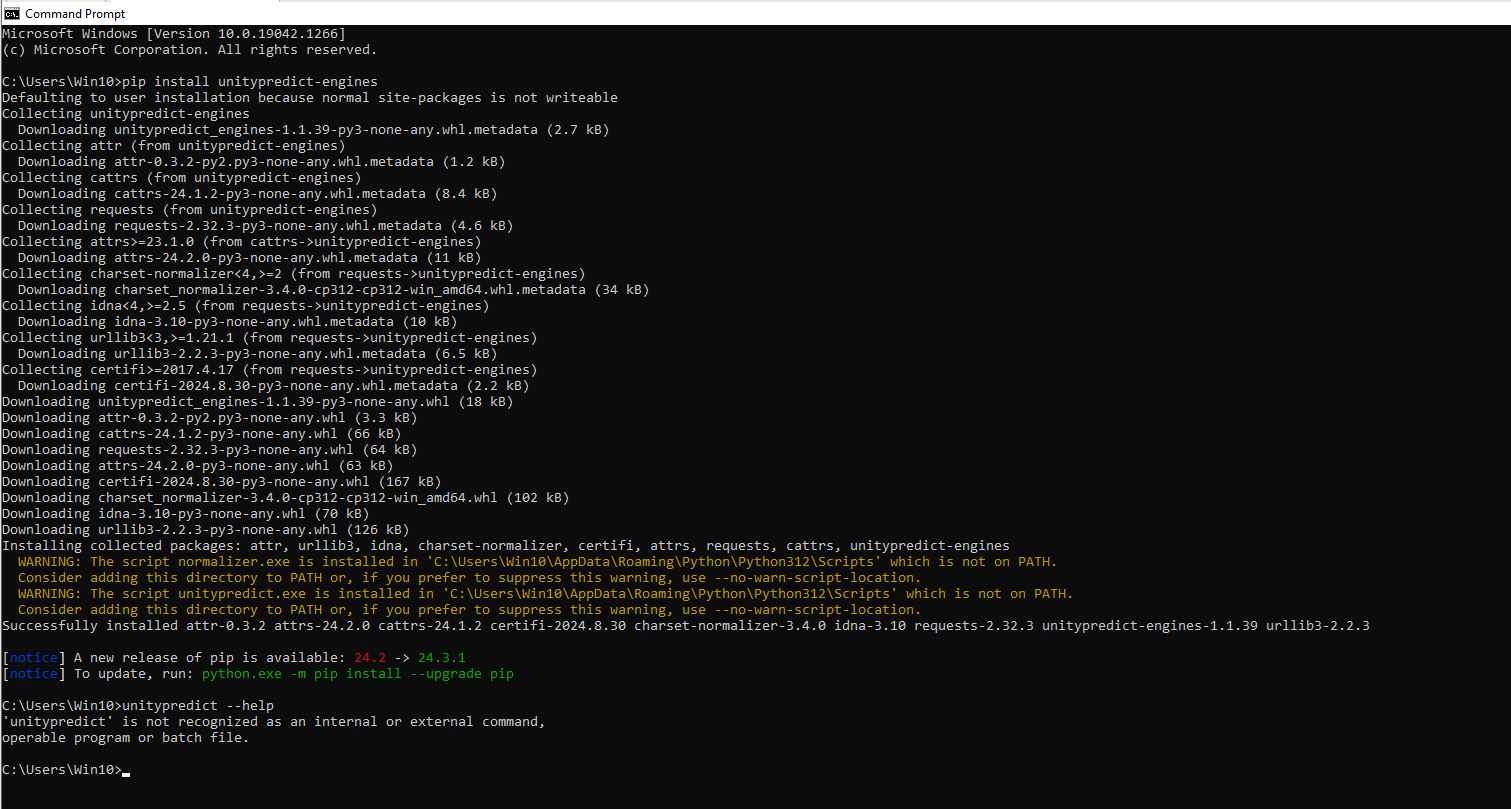
WARNING: The script unitypredict.exe is installed in 'C:\Users\{username}\AppData\Roaming\Python\Python312\Scripts' which is not on PATH.This means your custom python scripts are in a different folder than your Python installation. To make sure you can execute the unitypredict command from powershell and/or command line, you will need to add the script folder specified in the Warning message to your system PATH environment variable. As per the warning above, the PATH should be updated by adding the following path:
C:\Users\{username}\AppData\Roaming\Python\Python312\ScriptsCLI functionalities of SDK
To view the available options and usage instructions for the UnityPredict SDK, execute one of the following commands:
unitypredict -hunitypredict --help
This will display the following help message:
bash
usage: unitypredict [-h] [--configure] [--list_profiles] [--engine] [--create CREATE] [--remove REMOVE] [--run] [--deploy] [--delete]

Welcome to UnityPredict SDK

options:
  -h, --help            show this help message and exit
  --configure           unitypredict --configure
  --profile PROFILE     unitypredict <options> --profile <profileName>
  --list_profiles       unitypredict --list_profiles
  --engine              unitypredict --engine <options>
  --create CREATE       unitypredict --engine --create <EngineName>  (interactively prompts for repository, platform, base image, and batch config)
  --non-interactive     unitypredict --engine --create <EngineName> --non-interactive --parentRepoId <id> --platform <key> --baseImage <image> [--batchMode <mode>] [--maxBatchSize <n>] [--disableBatch]
  --parentRepoId        unitypredict --engine --create <EngineName> --non-interactive --parentRepoId <repositoryId or name>
  --platform            unitypredict --engine --create <EngineName> --non-interactive --platform <platformKey or name>
  --baseImage           unitypredict --engine --create <EngineName> --non-interactive --baseImage <image>
  --batchMode           unitypredict --engine --create <EngineName> --non-interactive --batchMode <mode>  (e.g. Continuous or None)
  --maxBatchSize        unitypredict --engine --create <EngineName> --non-interactive --batchMode Continuous --maxBatchSize <n>  (default: 50)
  --disableBatch        unitypredict --engine --create <EngineName> --non-interactive --disableBatch  (sets BatchConfig to disabled)
  --remove REMOVE       unitypredict --engine --remove <EngineName>
  --run                 unitypredict --engine --run
  --push                unitypredict --engine --push
  --deploy              unitypredict --engine --deploy
  --forceDeploy         unitypredict --engine --deploy --forceDeploy
  --delete              unitypredict --engine --delete
  --uploadTimeout UPLOADTIMEOUT
                        unitypredict --engine --deploy --uploadTimeout <TimeoutInSeconds (default: 600)>
  --deployTimeout DEPLOYTIMEOUT
                        unitypredict --engine --deploy --deployTimeout <TimeoutInSeconds (default: 600)>
  --getLastDeployLogs   unitypredict --engine --getLastDeployLogs
  --deployStatus        unitypredict --engine --deployStatus [--engineId <EngineId>] [--timeout <TimeoutInSeconds>]
  --timeout TIMEOUT     unitypredict --engine --deployStatus --timeout <TimeoutInSeconds>  (omit for a single status read; when given, waits at most this long)
  --pull                unitypredict --engine --pull
  --engineId ENGINEID   unitypredict --engine --pull --engineId <EngineId> / unitypredict --engine --deployStatus --engineId <EngineId>
  -y, --yes             unitypredict <options> -y / unitypredict <options> --yes
unitypredict --configure
To interact with the UnityPredict platform, you'll need an API key.
To configure the API Key on the
UnityPredictplatform:- Log in to the
UnityPredictaccount. - Navigate to the PROFILE tab.
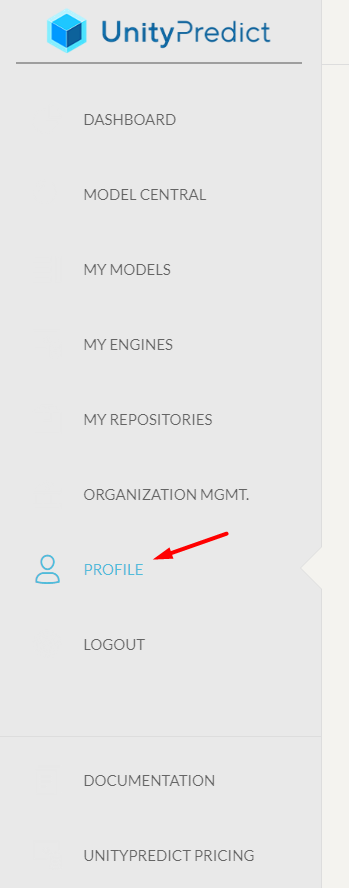
- In the Manage API Keys section, either copy an existing API key or click the + button to create a new one.
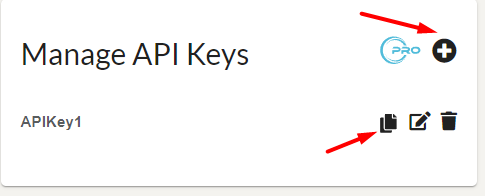
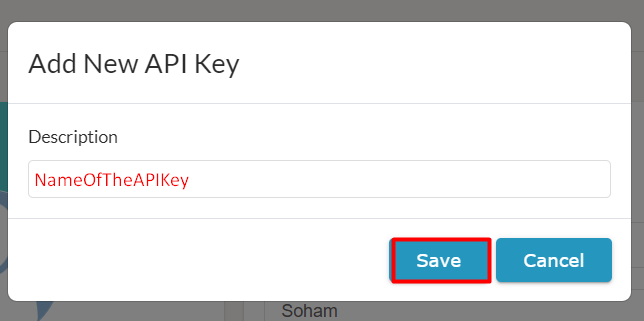
- Log in to the
Open your terminal or command prompt.
Run the following command:
bash
unitypredict --configure- The command prompt will ask you to enter your API key. Paste the copied key and press Enter.
unitypredict <options> --profile <profileName>
- This command allows you to specify the UnityPredict credential profile to be used for the current operation.
- If no profile is specified, the default profile will be used.
- Allows you to maintain multiple profiles for different operations.
bash
unitypredict --configure --profile newProfile- This will update the API key under the
newProfileprofile. - Any other operations using
--profile newProfilewill use the API key created under thenewProfile. - Mainly required for deployment of engines to using different profiles.
bash
unitypredict --engine --deploy --profile newProfileOR
bash
unitypredict --engine --pull -y --profile newProfileunitypredict --list_profiles
- Once your API key is configured, you can use the following command to list the available UnityPredict credential profiles on your system:
bash
unitypredict --list_profiles- This will output a list of profiles, typically including a
defaultprofile.
unitypredict --engine <options>
- The
unitypredict --enginecommand allows you to interact with UnityPredict Engines from the command line. It requires an additional parameter<options>to specify the desired action.
unitypredict --engine --create <EngineName>
- Use the following command to create a new UnityPredict Engine directory with a chosen name:
bash
unitypredict --engine --create <EngineName>Replace
<EngineName>with your desired engine name.During engine creation, the CLI will interactively prompt you to configure the following settings:
- Parent Repository — select the UnityPredict repository this engine belongs to. Enter a number, repository name, or repository ID.
- Platform — select the compute platform for the engine (CPU or GPU). Enter a number, platform name, or platform key.
- Base Image — select a recommended base image for the chosen platform, or choose Others / Enter custom to specify your own image name (leave empty to skip and set it manually in
config.jsonlater). - Batch processing — choose whether to enable batch processing (
y/[n]). If you decline (default),BatchConfigis left unset inconfig.jsonand you can add it later. If you enable it:- Enter a batch mode (default:
Continuous). EnteringNonedisables batch processing. - Enter a max batch size (default:
50).
- Enter a batch mode (default:
If any selection cannot be resolved (e.g. no repositories found), the CLI will print a message and you can set the corresponding field in
config.jsonmanually before deploying.
Non-Interactive Mode (CI/CD)
For automated workflows, pass the required settings as arguments using --non-interactive:
bash
unitypredict --engine --create <EngineName> --non-interactive \
  --parentRepoId <repositoryIdOrName> \
  --platform <platformKeyOrName> \
  --baseImage <baseImageName> \
[--batchMode <mode>] [--maxBatchSize <n>] [--disableBatch]- All three flags (
--parentRepoId,--platform,--baseImage) are required when using--non-interactive. The command will fail immediately if any are missing. --parentRepoIdand--platformare validated against the platform — if the value does not match any available option, the CLI prints the full list of valid options and exits with code1.--baseImageaccepts any string (including custom images not in the recommended list).- Batch flags are optional:
- If none are provided,
BatchConfigis left unset inconfig.json(same as declining the interactive prompt). --batchMode <mode>enables batch processing (e.g.Continuous). Use--batchMode Noneto disable batch processing.--maxBatchSize <n>sets the max batch size when--batchModeis set (default:50). It cannot be used without--batchMode.--disableBatchexplicitly disables batch processing (BatchConfigset to disabled/null). It cannot be used together with--batchMode.
- If none are provided,
Example (without batch config):
bash
unitypredict --engine --create MyEngine --non-interactive \
  --parentRepoId "My Repository" \
  --platform SL_CPU_BASE_PYTHON_3.12 \
  --baseImage python:3.12
Example (with batch enabled):
bash
unitypredict --engine --create MyEngine --non-interactive \
  --parentRepoId "My Repository" \
  --platform SL_CPU_BASE_PYTHON_3.12 \
  --baseImage python:3.12 \
  --batchMode Continuous \
  --maxBatchSize 50
Example (batch explicitly disabled):
bash
unitypredict --engine --create MyEngine --non-interactive \
  --parentRepoId "My Repository" \
  --platform SL_CPU_BASE_PYTHON_3.12 \
  --baseImage python:3.12 \
--disableBatch- This command generates the following project structure:
SpecifiedEngineName
├── unitypredict_mocktool (folder)  # May vary depending on engine type
│   ├── models (folder)
│   ├── requests (folder)
│   └── tmp (folder)
├── config.json (file)
├── EntryPoint.py (file)
├── main.py (file)
├── AdditionalDockerCommands.txt (file)
└── requirements.txt (file)EntryPoint.py: This file plays a crucial role in engine creation. You can find more details about its functionalities in the section UnderstandingEntryPoint.pyandPlatform.py.main.py: This is a template file that launches your Engine. You can customize it by adding user-defined input parameters required by the engine.
python
testRequest = InferenceRequest()
# User defined Input Values
testRequest.InputValues = {}requirements.txt: This is a standard requirements file where you can specify any additional libraries needed to run your engine.config.json: This configuration file allows you to run the engine locally and update it on the UnityPredict platform. Refer to the section Config File and Project Tree Structure for details about this file.AdditionalDockerCommands.txt: This file allows you to specify any additional docker commands, specifically for additional package installations required by the engine. Refer to the sectionunitypredict --engine --deployfor usage of this file.
Config File and the project tree structure
The templated config.json is configured in accordance with the created project tree structure:
SpecifiedEngineName
├── unitypredict_mocktool (folder)  # May vary depending on engine type
│   ├── models (folder)
│   ├── requests (folder)
│   └── tmp (folder)
├── config.json (file)
├── EntryPoint.py (file)
├── main.py (file)
├── AdditionalDockerCommands.txt (file)
└── requirements.txt (file)
The contents of the config.json include the relative paths within the created structure and default deployment parameters:
json
{
  "ModelsDirPath": "unitypredict_mocktool/models",
  "LocalMockEngineConfig": {
    "TempDirPath": "unitypredict_mocktool/tmp",
    "RequestFilesDirPath": "unitypredict_mocktool/requests",
    "SAVE_CONTEXT": true,
    "UPT_API_KEY": "",
    "RequestFilePublicUrlLookupTable": {}
  },
  "DeploymentParameters": {
    "UnityPredictEngineId": "",
    "ParentRepositoryId": "",
    "EngineName": "MyEngine",
    "EngineDescription": "",
    "EnginePlatform": "SL_CPU_BASE_PYTHON_3.12",
    "SelectedBaseImage": "",
    "Storage": 2048,
    "Memory": 2048,
    "MaxRunTime": "00:30:00",
    "AdditionalDockerCommands": "",
    "ComputeSharing": false,
    "GPUMemoryRequirement": 1024
  }
}
NOTE: BatchConfig is optional and is omitted from the default template when batch processing is left unset during create. When enabled, it appears under DeploymentParameters as:
json
"BatchConfig": {
  "BatchMode": "Continuous",
  "MaxBatchSize": 50
}
See BatchConfig under the deploy section for the full three-state behavior.
- ModelsDirPath: Local model files/binaries to be uploaded to the Engine for execution can be added under this directory.
Config within LocalMockEngineConfig:
RequestFilesDirPath: Files or folders to be uploaded to the Engine for use during execution can be placed in this directory.
SAVE_CONTEXT: Retains context across multiple requests. Set to
falseusing"SAVE_CONTEXT": falseto disable.UPT_API_KEY: The API Key token generated from the UnityPredict profile (see here).
- If this field is empty, the API configured using
unitypredict --configurewill be used.
- If this field is empty, the API configured using
TempDirPath: Temporary directory for writing or reading additional files/folders based on your Engine's needs.
RequestFilePublicUrlLookupTable: If any file needs to be used as an URL for the Engine, use this dictionary with the following format:
{"fileName": "fileUrl"}. ThefileUrlcan be any publicly accessible URL (e.g., Dropbox or Drive).
Config within DeploymentParameters:
- This will be discussed under the
unitypredict --engine --deploycommand.
unitypredict --engine --remove <EngineName>
- Use the following command to remove an existing UnityPredict engine:
bash
unitypredict --engine --remove <EngineName>- Replace
<EngineName>with the name of the engine you want to delete.
unitypredict --engine --run
- To run an engine locally, navigate to the engine's directory and execute the following command:
bash
unitypredict --engine --run- This will start the engine and process requests according to its configuration.
unitypredict --engine --push
- To push the local engine updates to the UnityPredict platform without deploying, navigate to the engine's directory and execute the following command:
bash
unitypredict --engine --push- This will push the local engine updates to the UnityPredict platform without deploying.
unitypredict --engine --deploy
- Open the
config.jsonfile in your engine's directory. - Fill in the fields under the
DeploymentParameterssection. - Navigate to the engine's directory and execute the following command:
bash
unitypredict --engine --deploy- This will initiate the deployment process.
The fields under the DeploymentParameters section are ad follows:
UnityPredictEngineId :
- This is the Engine ID assigned by the UnityPredict platform.
- If this value is empty or an invalid string, the platform will detect the anomaly and assign a proper ID for the Engine.
- During the first deployment, the
config.jsonwill update this key with the assigned Engine ID.
ParentRepositoryId:
- The UnityPredict Repository ID under which the Engine is expected to be created.
- In order to fetch the Repository ID, follow the steps:
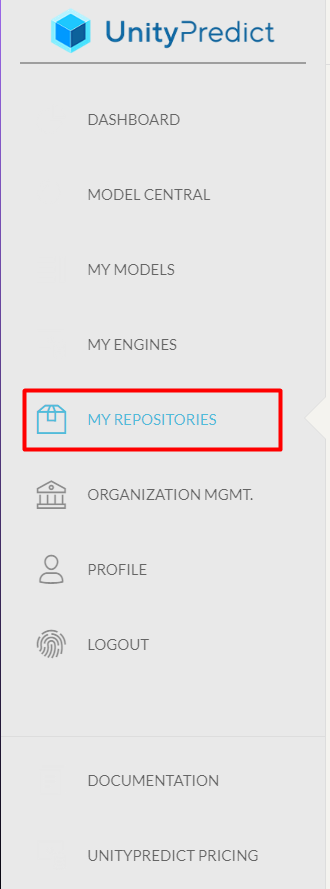
- Go to "MY REPOSITORIES".
- On the list of Repositories, click on the
copybutton of the repository under which you want to create the Engine. 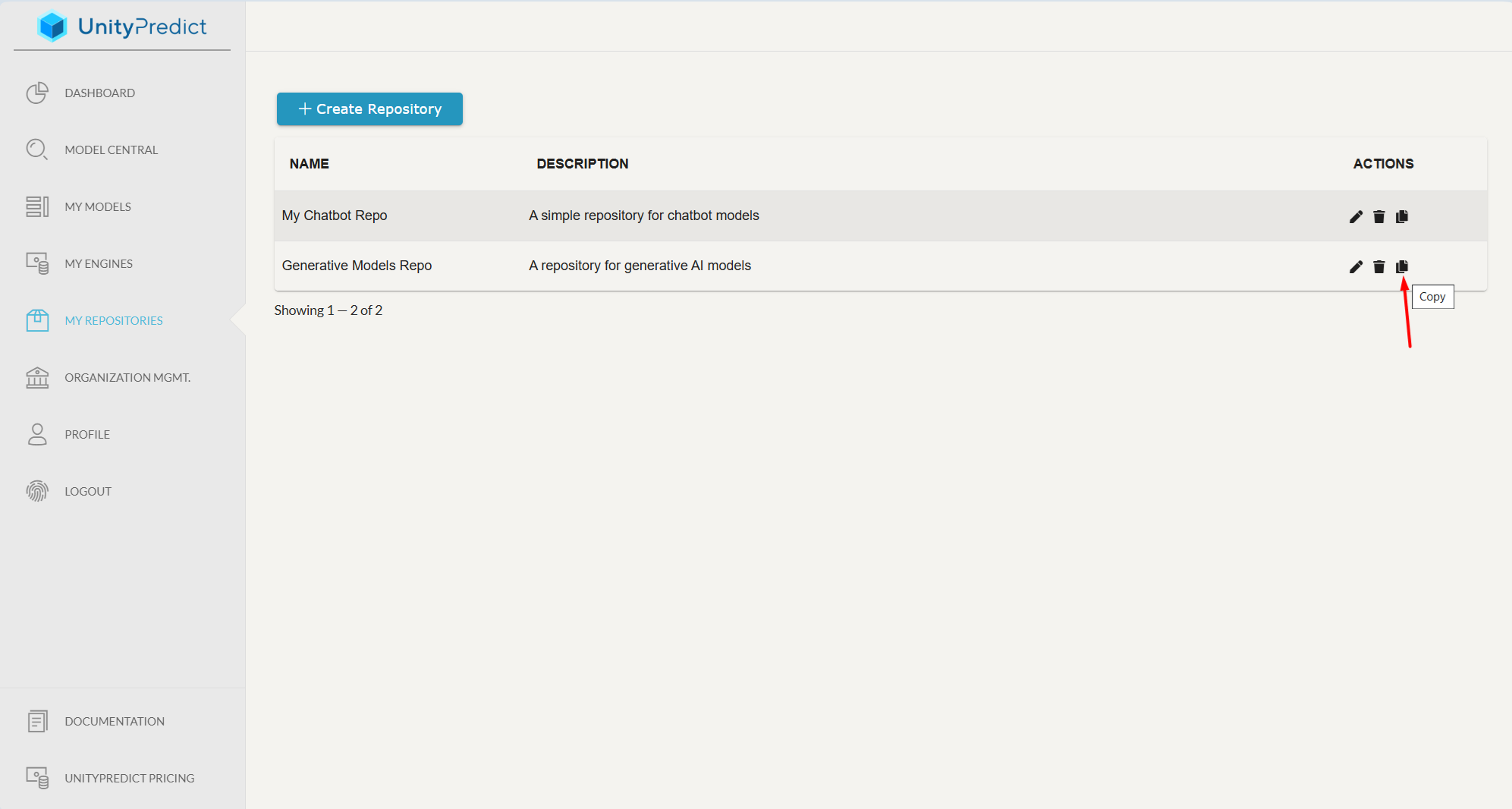
- Paste the value copied under this parameter of
config.json.
NOTE: During the first deployment, UnityPredictEngineId will be empty. If ParentRepositoryId is also empty or is added with an invalid ID, the deployment will stop prompting the user for a valid Repository ID.
bash
PROMPT/SpecifiedEngineName$ unitypredict --engine --deploy
Deploying SpecifiedEngineName ...
No engine id detected! Creating new Engine SpecifiedEngineName and assigning new EngineId
No Parent Repository ID provided! Cannot create EngineId without the Parent Repository!
Please configure the ParentRepositoryId in the config.json
Error in fetching EngineId on the UPT Repository. EngineId: None
Error in deploying Engine SpecifiedEngineNameEngineName:
- The name of the Engine.
- Defaults to
MyEngine.
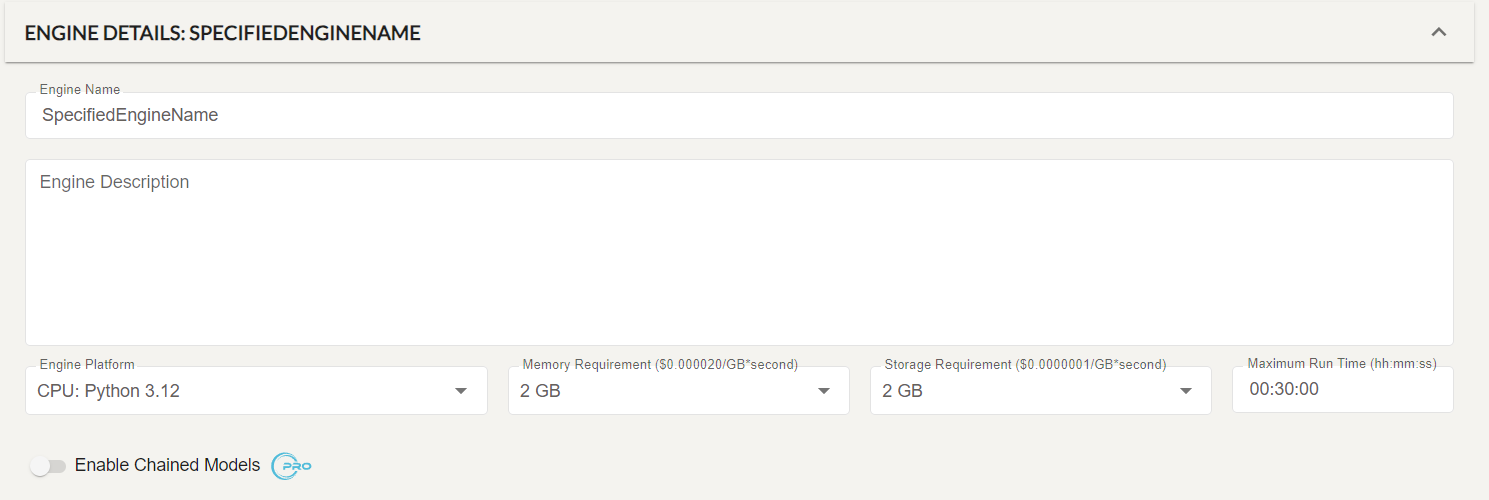
EngineDescription:
- Describes the functionality of the Engine (refer the image below).
EnginePlatform:
- Select the preferable platform type for the Engine.
- These are the types of the platform and their corresponding platform descriptions:
"SL_CPU_BASE_PYTHON_3.11": "CPU: Python 3.11", "SL_CPU_BASE_PYTHON_3.12": "CPU: Python 3.12", "SL_GPUClusterType1": "1x NVIDIA GPU (16GB VRAM)", "SL_GPUClusterType2": "1x NVIDIA GPU (48GB VRAM)", "SL_GPUClusterType3": "4x NVIDIA GPU (192GB VRAM)", "SL_GPUClusterType4": "8x NVIDIA GPU (320GB VRAM)"SelectedBaseImage:
- The base image to be used for deployment of the Engine.
- This is only required for GPU-based platforms. The CPU-based platforms will ignore this parameter.
- If this parameter is not specified even after selecting a GPU-based platform, the default base image and their corresponding docker installation commands will be populated in the
AdditionalDockerCommands.txtfile. - The default base image is
nvidia/cuda:12.8.0-base-rockylinux9. The user can change this by specifying a different base image in theSelectedBaseImageparameter. TheAdditionalDockerCommandssection or theAdditionalDockerCommands.txtneeds to be updated accordingly.
Storage:
- The storage allocated to the Engine in megabytes (MB) (refer the image below).
Memory:
- The memory allocated to the Engine in megabytes (MB) (refer the image below).
MaxRunTime:
- The max allowed runtime for the engine. This can help control costs in case of runaway code causes the engine to run for too long.
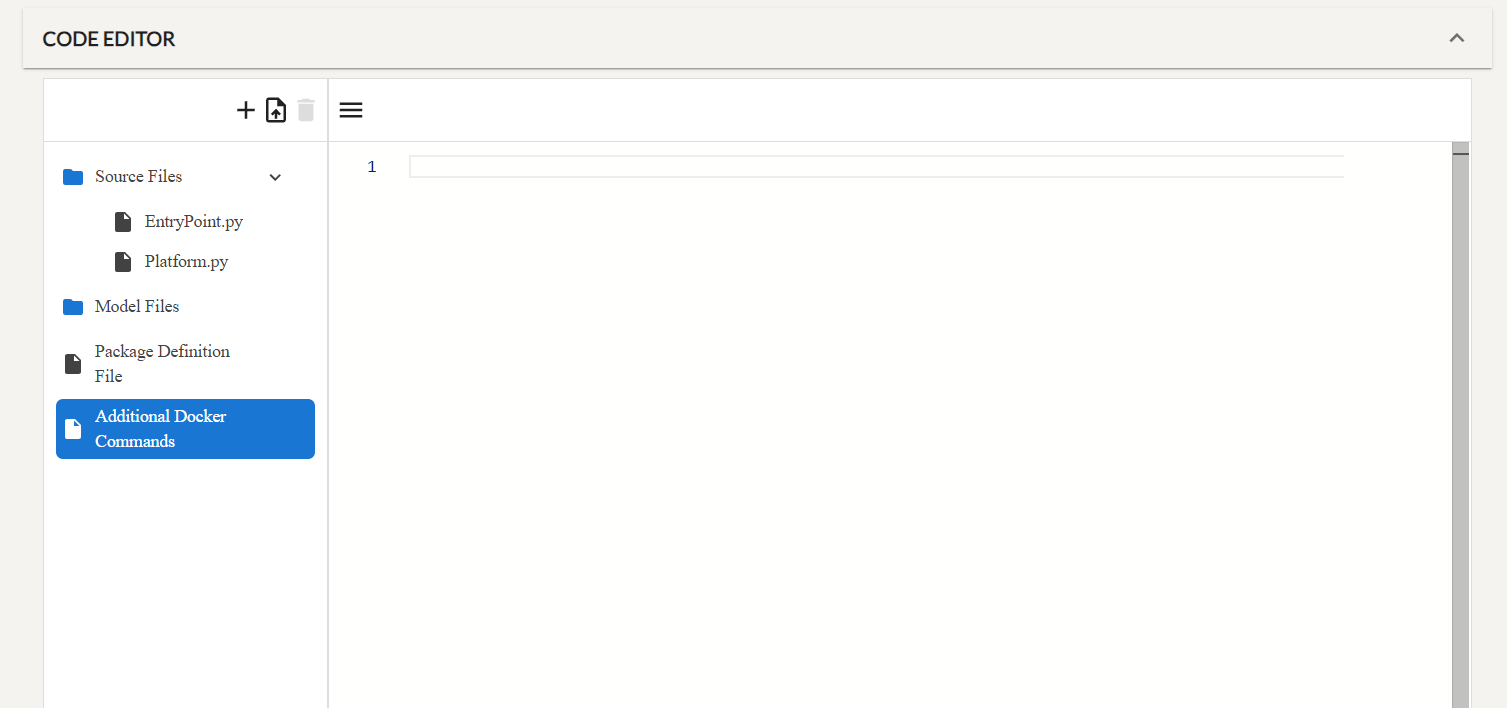
AdditionalDockerCommands:
- Any additional non python libraries, or environmental settings can be configured under this section.
- For complex library installations, use the
AdditionalDockerCommands.txtfile instead ofAdditionalDockerCommands. The contents of this file will be added to the Additional Docker Commands section.
ComputeSharing:
- Allows multiple engines to be loaded on the same machine. This provides significant cost savings (only pay for GB/s used) and improves cold start.
- Default value is
false, i.e. the engine will not be sharing resources with other engines.
GPUMemoryRequirement:
- This parameter allows the user to specify the GPU memory (in MB) requirement for the engine.
- This parameter is only applicable if ComputeSharing is enabled.
- The default value is 1024 (MB) of GPU memory.
- Optional configuration that controls batch processing for the engine.
- When present during
deployorpush, the SDK sends the correspondingbatchConfigpayload to the UnityPredict platform. - The key supports three states:
- Key absent — batch config is unset; it is not included in the create/deploy/push request.
nullorBatchMode: "None"— batch processing is disabled (platform receivesbatchMode: "None",maxBatchSize: 1).- Object with
BatchModeandMaxBatchSize— batch processing is enabled with the given values.
BatchMode: Batch processing mode (e.g.Continuous). UseNoneto disable.MaxBatchSize: Maximum number of requests in a batch. Defaults to1when omitted in a disabled payload; when enabling via create, the CLI default is50.
Example (enabled):
json
"BatchConfig": {
  "BatchMode": "Continuous",
  "MaxBatchSize": 50
}
Example (disabled):
json
"BatchConfig": nullIMPORTANT:
- For older versions of the SDK, the
RunOnDedicatedInstanceparameter inconfig.jsonis used to determine the compute sharing and GPU memory requirement. This parameter is deprecated and will be removed in the future.- If
RunOnDedicatedInstanceis present in your localconfig.jsonfile due to the usage of older version of the SDK, updating the SDK to the latest version will convert theRunOnDedicatedInstanceparameter toComputeSharingandGPUMemoryRequirementparameters during apullordeployoperation.json{ "RunOnDedicatedInstance": true }will be converted to
json{ "ComputeSharing": false, "GPUMemoryRequirement": 1024 }and vice versa.
unitypredict --engine --deploy --forceDeploy
- This operation forces a new deployment to be initiated, even if one is already in progress. It is not recommended to use this option unless you have monitored the build logs and it appears that the build/deploy process is frozen.
bash
unitypredict --engine --deploy --forceDeployunitypredict --engine --delete
- To delete an engine from the UnityPredict platform, navigate to the engine's directory and execute the following command:
bash
unitypredict --engine --delete- This will remove the engine from the platform.
unitypredict --engine --pull
- To pull the latest version of the engine from the UnityPredict platform, navigate to the engine's directory and execute the following command:
bash
unitypredict --engine --pull- This will pull the latest version of the engine from the
UnityPredictplatform. - If the
config.jsonfile contains a validUnityPredictEngineIdunderDeploymentParameterssection, the pull operation will be continued, else the operation will be aborted. - Deployment parameters in local
config.json(includingBatchConfig) are updated from the remote engine details during pull. - During the pull operation, there will be a prompt to warn the user about the potential loss of changes made to the local engine.
text
Warning: This will overwrite the current engine testNewDeploy1 components with the latest version from UnityPredict!
Do you want to continue? ([y]/n):- If the user agrees to continue (by pressing
yorEnter), the engine will be updated with the latest version from the UnityPredict platform. - If the user does not agree to continue (by pressing
n), the operation will be aborted. - In order to not have the blocking prompt, the user can add the
-yor--yesflag to the command.
bash
unitypredict --engine --pull -yOR
bash
unitypredict --engine --pull --yesunitypredict --engine --pull --engineId <EngineId>
- This command allows the user to pull the latest version of the engine from the UnityPredict platform using the Engine ID.
bash
unitypredict --engine --pull --engineId <EngineId>- Running this will create a local folder derived from the Engine name on the
UnityPredictplatform. - Engine names on the platform are free text, and many characters that are legal in a name are unsafe or awkward in a folder name. Whitespace and the characters
:/\<>|.,;*?"#@~$^are each replaced with_, and consecutive replacements collapse into a single_:Qwen2.5-VL 7B (Instruct)→Qwen2_5-VL_7B_(Instruct)— from the.and the spacesChatbots: User Intent Identification→Chatbots_User_Intent_Identification— from the:, which is what makes the original name unusable as a folder on Windows
- Hyphens and parentheses are kept as-is. Very long names are shortened, and a name that is reserved by Windows (
CON,NUL,COM1…) is prefixed with_. - The Engine is not renamed on
UnityPredict. The original name is preserved inconfig.jsonunderDeploymentParameters.EngineName. - When the two differ, the CLI prints the mapping it used.
Note: Later commands that take an Engine name argument — such as
unitypredict --engine --remove <EngineName>, or running--run/--deployfrom inside the folder — operate on the local folder, so they need the folder name, not the platform display name. In the example above that isChatbots_User_Intent_Identification.
- It will pull the latest version of the engine from the
UnityPredictplatform and update the local engine with the latest version. - If the older version of the engine is present in the local folder, it will be overwritten with the latest version.
- In order to not have the blocking prompt, the user can add the
-yor--yesflag to the command.
bash
unitypredict --engine --pull --engineId <EngineId> -y- If the
EngineIdis not provided, the command will default to the behavior of theunitypredict --engine --pullcommand.
Optional: unitypredict --engine --deploy --uploadTimeout <TimeoutInSeconds>
- To upload larger files (specifically pre-trained model files) during deployment, you may override the upload time by executing the following command:
bash
unitypredict --engine --deploy --uploadTimeout <TimeoutInSeconds>- The default upload timeout value during deployment is set to 600 Seconds.
Optional: unitypredict --engine --deploy --deployTimeout <TimeoutInSeconds>
- To extend the duration of checking the status of deployment, you may override the deploy timeout by executing the following command:
bash
unitypredict --engine --deploy --deployTimeout <TimeoutInSeconds>- The default deploy timeout value during deployment is set to 600 Seconds.
- Reaching this timeout is not a deployment failure. The CLI only stops waiting — the deployment carries on running on
UnityPredictand is neither cancelled nor rolled back. Do not re-run--deploy; useunitypredict --engine --deployStatusto follow it instead. - In this case the command exits with code 3, distinct from 1 used for an actual deployment error, so CI scripts can tell "still running" apart from "failed".
Optional: unitypredict --engine --getLastDeployLogs
- To get the detailed deployment logs for the latest deployment, you may execute the following command:
bash
unitypredict --engine --getLastDeployLogs- This will save the deployment logs to the
DebugLogs.txtfile in the engine's directory.
unitypredict --engine --deployStatus
- To check how a deployment is progressing without starting a new one, navigate to the engine's directory and execute the following command:
bash
unitypredict --engine --deployStatus- This is a read-only check. Unlike re-running
--deploy, it never re-triggers a deployment. - The Engine ID is read from the
UnityPredictEngineIdkey underDeploymentParametersin the engine'sconfig.json. If the engine has not been deployed yet, pass the Engine ID explicitly instead — this also works from any directory, not only from inside an engine folder:
bash
unitypredict --engine --deployStatus --engineId <EngineId>Exit codes
The command reports the outcome through its exit code, so it can be used directly in a CI script:
| Exit | Meaning |
|---|---|
0 | The engine is Ready and its last build succeeded. |
1 | A real error — the status could not be fetched, or the engine is Ready but its last build failed. |
3 | The deployment is still in progress. This is not a failure. |
- Exit
3covers both a single read that finds a deploy still running and a--timeoutthat elapses while one is still running. It is the same code--deployuses when it stops waiting, so a script can treat3as "check again later" in either case. - Because a single read exits
3while a deploy is in progress, do not read "the command returned" as "the deploy succeeded" — check the code.
Optional: unitypredict --engine --deployStatus --timeout <TimeoutInSeconds>
- Without
--timeoutthe command performs a single status read and exits straight away, with the code from the table above. - Supply
--timeoutto keep polling until the deployment finishes or at most the given number of seconds has elapsed. As with the plain form, run it from the engine's directory or pass--engineId:
bash
unitypredict --engine --deployStatus --timeout <TimeoutInSeconds>
unitypredict --engine --deployStatus --engineId <EngineId> --timeout <TimeoutInSeconds>--timeoutmust be at least 1 second. Omit it entirely for a single read — a value of0is rejected rather than silently skipping the check.- As with
--deployTimeout, reaching this limit only stops the waiting — the deployment continues to run onUnityPredictand is not cancelled. Do not re-run--deploy.
Note:
--timeoutapplies to--deployStatus, and--deployTimeoutapplies to--deploy. They are separate flags for separate commands, and passing--timeoutto--deployis an error rather than being ignored.
Additional CLI Notes
- The optional flags can be used together while deploying an Engine. This will allow you to override the default timeout values as needed for the nature of deployment.
bash
unitypredict --engine --deploy --uploadTimeout <TimeoutInSeconds> --deployTimeout <TimeoutInSeconds>Understanding EntryPoint.py and platform.py
EntryPoint.py
EntryPoint.py is the script created by the user to provide the platform a well-defined function that can be invoked as the starting point for the inference code. It also acts as a gateway to access the "platform" object containing various features provided by UnityPredict.
platform.py
This interface serves as a blueprint for platform-specific implementations. Concrete classes will provide the necessary logic for interacting with the platform's file system, logging mechanisms, and UnityPredict integration (if applicable).
Usage of platform.py APIs in EntryPoint.py
The entrypoint in EntryPoint.py
Executes the inference engine, processing the given InferenceRequest on the specified IPlatform.
Parameters:
request: AnInferenceRequestobject containing the input values, desired outcomes, and context for the inference.platform: AnIPlatformobject representing the underlying platform, providing methods for interacting with the platform's resources.
Returns:
- An
InferenceResponseobject containing the inference result, including error messages, additional costs, and outcome values.
python
from unitypredict_engines.Platform import IPlatform, InferenceRequest, InferenceResponse, OutcomeValue, InferenceContextData, ChainedInferenceRequest
import datetime

def initialize_engine(platform: IPlatform) -> None:

    # Any large file downloads (eg. pre-trained model files) or processing logic to be added here


def run_engine(request: InferenceRequest, platform: IPlatform) -> InferenceResponse:

    # The inference logic
In order to construct the inference logic, we need to understand the various elements of the platform.py for proper access to the various platform functionalities.
NOTE:
- The
initialize_enginefunction is and optional function that can be used to perform any one-time operations as and when required. - The
initialize_enginescope will be executed only once when the engine does a cold start while prediction. This scope can be used to download any large files, specifically pre-trained model files from the internet or perform any other one-time operations. - NOTE: The
initialize_enginedoes not run on the main thread while bringing up the engine in order to felicitate the other operations to be performed in the background. The "run_engine" function will be called only after theinitialize_enginefunction has completed execution.
Classes
NOTE: All the snippets mentioned below are considered to be the inside the body of run_engine as mentioned here.
OutcomeValue
python
class OutcomeValue:
    Probability = 0.0
    Value = None

    def __init__(self, value: any = '', probability: float = 0.0):
        self.Probability = probability
        self.Value = value
Purpose:
- Represents a potential outcome with a probability and associated value.
Attributes:
Probability: Afloatvalue representing the probability of the outcome.Value: The value associated with the outcome. Can be any type.
Constructor:
__init__(value='', probability=0.0): Initializes anOutcomeValueobject with the specified value and probability.
Usage:
python
outcome = OutcomeValue(value="success", probability=0.8)
print(outcome.Value)  # Output: success
print(outcome.Probability)  # Output: 0.8
InferenceContextData
python
class InferenceContextData:
    StoredMeta: dict = {}

    def __init__(self):
        self.StoredMeta = {}
Purpose:
- Stores context metadata related to an inference request.
- This is used to save any context across multiple runs of the engine for the same ContextId (i.e. user session).
Attributes:
StoredMeta: A dictionary containing key-value pairs representing the stored metadata.
Constructor:
__init__(): Initializes anInferenceContextDataobject with an empty dictionary for stored metadata.
Usage:
python
context_data = InferenceContextData()
context_data.StoredMeta["user_id"] = 123
print(context_data.StoredMeta)  # Output: {'user_id': 123}
InferenceRequest
python
class InferenceRequest:
    InputValues: dict
    DesiredOutcomes: list
    Context: InferenceContextData = None
    def __init__(self):
        self.Context = InferenceContextData()
        self.InputValues = {}
        self.DesiredOutcomes = []
Purpose:
- Defines the input values, desired outcomes, and context for an inference.
Attributes:
InputValues: A dictionary containing key-value pairs representing the input values.DesiredOutcomes: A list of strings representing the desired outcomes.Context: AnInferenceContextDataobject containing metadata about the inference request as detailed here.
Constructor:
__init__(): Initializes anInferenceRequestobject with empty input values, desired outcomes, and an empty context.
Usage:
python
contextData = {} # Previous or Empty context
inputData = {"feature1" : 42, "feature2": "data"} # User InputData

request = InferenceRequest()
request.InputValues = inputData
request.DesiredOutcomes = ["predictionName"]
request.Context.StoredMeta = contextData
InferenceResponse
python
class InferenceResponse:
    ErrorMessages: str = ''
    AdditionalInferenceCosts: float = 0.0
    ReInvokeInSeconds: int = -1
    Context: InferenceContextData = None
    OutcomeValues: dict = {}
    Outcomes: dict = {}

    def __init__(self):
        self.ErrorMessages = ''
        self.AdditionalInferenceCosts = 0.0
        self.Context = InferenceContextData()
        self.OutcomeValues = {}
        self.Outcomes = {}
Purpose:
- Represents the response to an inference request, including error messages, additional costs, and outcome values.
- This can also allow to relay the context wished by the user to be propagated to subsequent runs.
Attributes:
ErrorMessages: A string containing any error messages encountered during the inference.AdditionalInferenceCosts: Afloatvalue representing the additional costs (in US Dollars) incurred during the inference.ReInvokeInSeconds: Puts the engine to sleep for N seconds (maximum 900 seconds). This can be used to reduce compute costs while performing external operations.Context: AnInferenceContextDataobject containing metadata about the inference request and any information required to be used as a context for subsequent runs (Eg. chatbots). Details of context is present here.OutcomeValues (Deprecated): A dictionary containing key-value pairs representing the outcome values, where the keys are the desired outcome names and the value is a singleOutcomeValueobject.Outcomes: A dictionary containing key-value pairs representing the outcome values, where the keys are the desired outcome names and the values are list ofOutcomeValueobjects.
Constructor:
__init__(): Initializes anInferenceResponseobject with empty error messages, additional costs, an empty context, and empty outcome values.
Usage:
python
response = InferenceResponse()
response.ErrorMessages = ""
response.AdditionalInferenceCosts = 0.123
response.Outcomes["predictionName"] = [OutcomeValue(value="positive", probability=0.7)]
ChainedInferenceRequest
python
class ChainedInferenceRequest:
    ContextId: str = ''
    InputValues: dict
    DesiredOutcomes: list

    def __init__(self):
        self.ContextId = ''
        self.InputValues = {}
        self.DesiredOutcomes = []
Purpose:
- Represents a chained inference request, i.e. chaining another model from the current Engine using the input structure to provide inputs to that model from the current engine.
- This is mainly used by the invokeUnityPredictModel method.
Attributes:
ContextId: A string representing the ID of the context for the chained inference.InputValues: A dictionary containing key-value pairs representing the input values for the chained inference.DesiredOutcomes: A list of strings representing the desired outcomes for the chained inference.
Constructor:
__init__(): Initializes aChainedInferenceRequestobject with empty context ID, input values, and desired outcomes.
Usage:
python
inputData = {"key1" : "value1"} # User Input data

chained_request = ChainedInferenceRequest()
chained_request.InputValues = inputData
chained_request.DesiredOutcomes = ["predictionName"]
ChainedInferenceResponse
python
class ChainedInferenceResponse:
    ContextId: str = ''
    RequestId: str = ''
    ErrorMessages: str = ''
    ComputeCost: float = 0.0
    OutcomeValues: dict = {}
    Outcomes: dict = {}

    def __init__(self):
        self.ContextId = ''
        self.RequestId = ''
        self.ErrorMessages = ''
        self.ComputeCost = 0.0
        self.OutcomeValues = {}
        self.Outcomes = {}
Purpose:
- Represents the response to a chained inference request, including the context ID, request ID, error messages, compute cost, and outcome values.
- This is mainly used by the invokeUnityPredictModel method.
Attributes:
ContextId: A string representing the ID of the context for the chained inference.RequestId: A string representing the ID of the individual inference request within the chain.ErrorMessages: A string containing any error messages encountered during the chained inference.ComputeCost: Afloatvalue representing the compute cost incurred during the chained inference.Outcomes: A dictionary containing key-value pairs representing the outcome values for the chained inference.
Methods:
getOutputValue(self, outputName: str, index = 0): Retrieves an output value from theOutcomesdictionary.Arguments:outputName:The name of the desired output.index:The index of the output value to retrieve. Defaults to 0.
Returns:- The retrieved output value, or None if not found.
Constructor:
__init__(): Initializes aChainedInferenceResponseobject with empty context ID, request ID, error messages, compute cost, and outcome values.
Usage:
python
chained_response = ChainedInferenceResponse()
chained_response.Outcomes["predictionName"] = [OutcomeValue(value="success", probability=0.9)]
FileTransmissionObj
python
class FileTransmissionObj:

    FileName: str = ''
    FileHandle: IOBase = None

    def __init__(self, fileName, fileHandle):
        self.FileName = fileName
        self.FileHandle = fileHandle
Purpose:
- Represents a file to be transmitted to the UnityPredict platform. This class encapsulates the file's name and a file-like object providing access to its content.
Attributes:
FileName: The name of the file to be transmitted to UnityPredict platform.FileHandle: A file-like object (e.g., a file handle, a BytesIO object) providing access to the file's content.- NOTE: Used with the
getModelFileandgetRequestFilemethods to receive the fileHandle object
Constructor:
def __init__(self, fileName, fileHandle):: The constructor initializes aFileTransmissionObjinstance with the specifiedfileNameandfileHandle.
Usage:
python
with platform.getRequestFile('fileName.ext', 'rb') as file:
    transmission_obj = FileTransmissionObj('fileName.ext', file)
FileReceivedObj
python
class FileReceivedObj:

    FileName: str = ''
    LocalFilePath: str = ''

    def __init__(self, fileName, localFilePath):
        self.FileName = fileName
        self.LocalFilePath = localFilePath
Purpose:
- Represents a file received from the UnityPredict platform. This class encapsulates the received file's name and its local path on the system.
Attributes:
FileName: The name of the received file from UnityPredict platform.LocalFilePath: The local path where the file was saved on the system.
Constructor:
def __init__(self, fileName, localFilePath):The constructor initializes aFileReceivedObjinstance with the specifiedfileNameandlocalFilePath.
Usage:
python
receivedObj = FileReceivedObj('receivedFile.ext', '/path/to/receivedFile.ext')Methods
NOTE: All the snippets mentioned below are considered to be the inside the body of run_engine as mentioned here.
getModelsFolderPath()
- Returns:
- The path to the folder containing model files, i.e. the ModelsDirPath as configured in the config JSON. Details of the config JSON can be found here.
- Purpose:
- Provides access to the location of pre-trained models used for inference.
Usage:
python
    models_folder = platform.getModelsFolderPath()
    print(f"Models Folder Path: {models_folder}")
getModelFile(modelFileName, mode='rb')
- Arguments:
modelFileName: The model file name.mode(optional): The mode in which to open the file (default: 'rb' for reading binary).
- Returns:
- An
IOBaseobject representing the opened model file from the configured ModelsDirPath in the config JSON. To refer details of the config JSON, click here.
- An
- Purpose:
- Enables loading model files for inference tasks.
Usage:
python
with platform.getModelFile("modelFile.pt", mode="rb") as modelFile:

    # Process the model file (e.g., using a deep learning framework)
    # ...
getRequestFile(modelFileName, mode='rb')
- Arguments:
modelFileName: The request file name.mode(optional): The mode in which to open the file (default: 'rb' for reading binary).
- Returns:
- An
IOBaseobject representing the opened request file from the configured RequestFilesDirPath in the config JSON. To refer details of the config JSON, click here.
- An
- Purpose:
- Facilitates interaction with request files containing input data.
Usage:
python
with platform.getRequestFile("requestFile.png", mode="rb") as requestFile:

    # Process the request file (e.g., parse JSON data)
    # ...
saveRequestFile(modelFileName, mode='wb')
- Arguments:
modelFileName: The request file name.mode(optional): The mode in which to open (create) the file (default: 'wb' for writing binary).
- Returns:
- An
IOBaseobject representing the opened request file for writing. The written files will be created under RequestFilesDirPath as configured in the config JSON. To refer details of the config JSON, click here.
- An
- Purpose:
- Allows creating files on the
UnityPredictplatform. - This will be used for creating intermediate files or output files (text, images, audios, etc.) depending on the application of engine.
- Allows creating files on the
Usage:
python
request_data = {"input1": 42, "input2": "data"}

with platform.saveRequestFile("generateOutputFile.json", mode="wb") as outFile:
    json.dump(request_data, outFile)
getLocalTempFolderPath()
- Returns:
- The path to a local temporary folder, i.e. TempDirPath configured under config JSON file. To refer details of the config JSON, click here.
- Purpose:
- Provides a location for storing temporary files during processing.
Usage:
python
temp_folder = platform.getLocalTempFolderPath()
print(f"Temporary Folder Path: {temp_folder}")
logMsg(msg)
- Arguments:
- A message to be logged under the
UnityPredictplatform.
- A message to be logged under the
- Purpose:
- Enables logging messages on the
UnityPredictplatform for debugging, monitoring, or informational purposes.
- Enables logging messages on the
Usage:
python
platform.logMsg("Starting inference process...")
platform.logMsg("Inference completed successfully.")
getRequestFilePublicUrl(requestFileName)
Arguments:
- requestFileName: The name of the request file to retrieve the public URL for.
Purpose:
- Retrieves the public URL of a request file that has been uploaded as an input to the
UnityPredictplatform. In case of SDK, the public URL of the desired file is to be provided under theRequestFilePublicUrlLookupTablefield insideconfig.json(refer here).
Usage:
python
# Assuming 'my_data.json' is a file uploaded to the platform
file_url = platform.getRequestFilePublicUrl('my_data.json')

# Use the file_url to access the file in the engine's code
invokeUnityPredictModel(modelId, request)
- Arguments:
modelId: The ID of theUnityPredictmodel to invoke.request: AChainedInferenceRequestobject representing the inference request to the chained model indicated by themodelId.
- Returns:
- A
ChainedInferenceResponseobject containing the response from the chainedUnityPredictmodel.
- A
- Purpose:
- This method is crucial for invoking
UnityPredictmodels from another AppEngine. - This allows the re-usage of a functionality of a model without re-writing the EntryPoint for a similar task that might be required for the intended engine.
- This method is crucial for invoking
Usage:
python
# Use the line below if not imported earlier
# from unitypredict_engines.Platform import ChainedInferenceRequest, ChainedInferenceResponse

# Create a chained inference request
chainedModelRequest = ChainedInferenceRequest()
chainedModelRequest.InputValues = {
    'text': transcript
}
chainedModelRequest.DesiredOutcomes = ['probPositive']

chainedModelResponse: ChainedInferenceResponse = platform.invokeUnityPredictModel(modelId='3ff2f098-6fbc-4370-bafa-f95c238b4260', request=chainedModelRequest)
An example EntryPoint.py
Lets try to use all the APIs and classes together to build a small EntryPoint.py and run the EntryPoint. Please follow along the comments mentioned in the snippet for understanding the usage.
python
from unitypredict_engines.Platform import IPlatform, InferenceRequest, InferenceResponse, OutcomeValue, InferenceContextData
import json
from typing import List, Dict, Optional
from collections import deque
import sys
import datetime

def initialize_engine(platform: IPlatform) -> None:
    # Any large file download (eg. pre-trained model files) or processing logic to be added here
    pass

def run_engine(request: InferenceRequest, platform: IPlatform) -> InferenceResponse:


    platform.logMsg("Running User Code...")
    response = InferenceResponse()

    context: Dict[str, str] = {}

    try:
        prompt = request.InputValues['InputMessage']


        # Saved context across requests
        # Use this variable to save new context in the dict format
        # request.Context.StoredMeta is of the format: Dict[str, str]
        context = request.Context.StoredMeta

        currentExecTime = datetime.datetime.now()
        currentExecTime = currentExecTime.strftime("%d-%m-%YT%H-%M-%S")
        resp_message = "Echo message: {} Time:: {}".format(prompt, currentExecTime)


        # platform.getRequestFile: Fetch Files specified under the "RequestFilesDirPath" in config
        try:
            requestFileName = "myDetails.txt"
            with platform.getRequestFile(requestFileName, "r") as reqFile:

                resp_message += "\n{}".format("\n".join(reqFile.readlines()))
        except:
            print ("Specified file not available: {}".format(requestFileName))


        # Fill context according to your needs
        context[currentExecTime] = resp_message


        # platform.saveRequestFile: Creates any file type Outputs
        # These files would be present under RequestFilesDirPath/outputFileName
        with platform.saveRequestFile("final_resp_{}.txt".format(currentExecTime), "w+") as outFile:

            outFile.write(resp_message)


        cost = len(prompt)/1000 * 0.03 + len(resp_message)/1000 * 0.06
        response.AdditionalInferenceCosts = cost
        response.Outcomes['OutputMessage'] = [OutcomeValue(value=resp_message, probability=1.0)]

        # Set the updated context back to the response
        response.Context.StoredMeta = context
    except Exception as e:
        response.ErrorMessages = "Entrypoint Exception Occurred: {}".format(str(e))

    print("Finished Running User Code...")
    return response
Observations and Notes:
This code tries to read the content of an input file (if available) using the
platform.getRequestFilemethod, and appends it to the input messageInputMessagealong with the current timestamp of the execution.The final concatenated message is then written in an output file and is also shown as the
OutputMessage.The created file
final_resp_{CurrentTimeStamp}.txtwill also be present under the request folder due to the usage ofplatform.saveRequestFilemethod.If the output is the created file itself, then just provide the name of the created file in the output.
python
OUT_FILE_NAME = "final_resp_{}.txt".format(currentExecTime)

response.Outcomes['OutputMessage'] = [OutcomeValue(value=OUT_FILE_NAME, probability=1.0)]- In order to propagate the context that you want to use in further requests, fetch the context from the
InferenceRequest, modify it in the code as per the Engine requirements and set the updated context to theInferenceResponse. The corresponding lines from the above code are:
python
# request: InferenceRequest
context = request.Context.StoredMeta
# ...
# ...

# Fill context according to your needs
context[currentExecTime] = resp_message

# ...
# ...

# Set the updated context back to the response: InferenceResponse
response.Context.StoredMeta = context
Users can add their desired files under the configured request folder. This is an example snip.
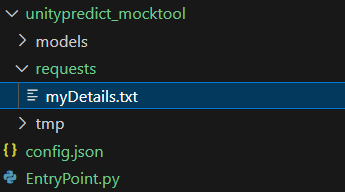
Let us set the myDetails.txt file content.
text
This is the introductory messageNOTE: The TempDirPath, i.e. the temp folder path can be used to store any intermediate files that are required for the engine to run. Below is an example snippet that shows how to use the input file myDetails.txt and the TempDirPath to store an intermediate file.
python
with platform.getRequestFile(inputFileName) as inputFile:

    with open(os.path.join(platform.getLocalTempFolderPath(), inputFileName), "wb") as tempInputFile:
        tempInputFile.write(inputFile.read())
Once the main is attached to this code, we might get an output of this sort.
bash
Config file detected, loading data from: path/to/config.json

Running User Code...

Finished Running User Code...


Outcome Key: OutputMessage
Outcome Value:
Echo message: Hi, this is the message to be echoed Time:: 08-09-2024T10-51-30
This is the introductory message


Outcome Probability:
1.0


Error Messages:
This is the tree structure after the output. 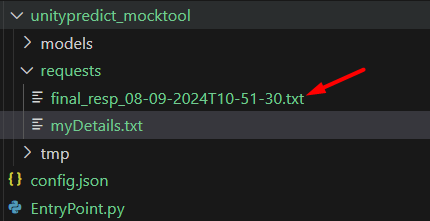
The content of the output file.
text
Echo message: Hi, this is the message to be echoed Time:: 08-09-2024T10-51-30
This is the introductory message